Chat Interface
The iPhone app centers around a natural, conversational chat interface. Type, speak, or attach files — Demi understands it all and gets to work.
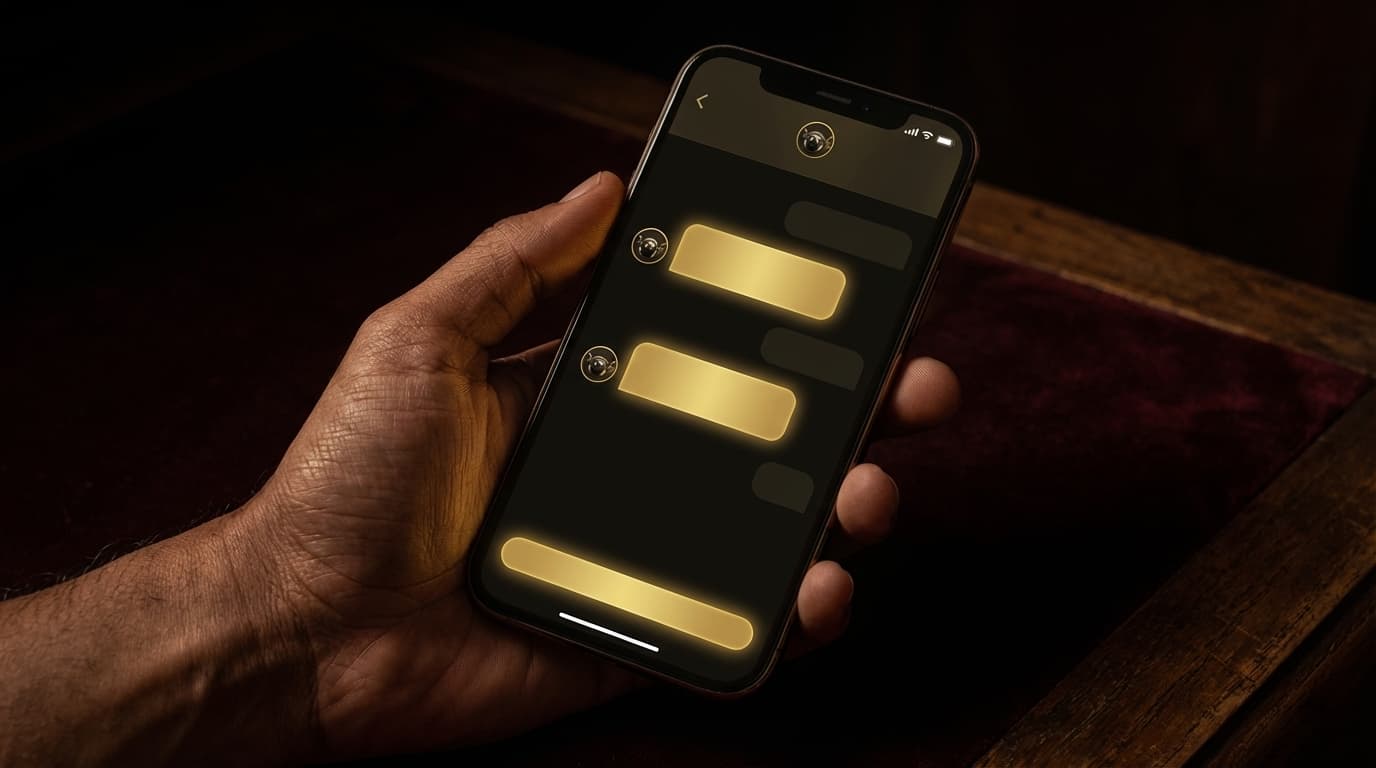
Your Conversation with Demi
The chat screen is where everything begins. Think of it as a private conversation with your most capable assistant. Just tell Demi what you need in plain language, and it will figure out the rest — reading your calendar, drafting emails, researching topics, or building spreadsheets without you having to open a single app.
Your full message history is preserved and easy to search. Scroll back through previous conversations to revisit what Demi found, review task results, or pick up where you left off. Conversations are organized chronologically so you always have context.
Type or Speak
You have two ways to communicate with Demi. Type your request using the keyboard for precise, detailed instructions. Or tap the microphone button and speak naturally — Demi transcribes your voice in real time and responds just as it would to typed text.
Voice input is especially handy for longer requests. Describe a complex task, rattle off a list of to-dos, or dictate a message you want Demi to send on your behalf. The transcription is fast and accurate, and you can review it before sending.
Attachments
Need Demi to work with a specific file? Tap the attachment button to share photos, documents, or files directly from your device. Demi can read and reference these attachments when executing your task — whether that means summarizing a PDF, pulling data from a spreadsheet, or including an image in an email.
Supported file types
You can attach photos, PDFs, spreadsheets, text documents, and more. Demi will let you know if a particular file type is not supported.
Smart Action Bar
Below the chat input, you will find the smart action bar — a row of context-aware quick actions that update based on your current conversation. If you have just been discussing your schedule, you might see shortcuts for creating a calendar event or checking your next meeting. After a research conversation, you might see options to compile a report or send a summary email.
These suggestions save you from typing repetitive follow-ups. One tap and Demi takes the next logical step.
Tool Mode Selection
The chat interface lets you select which tool mode Demi should use for your next request. Switch between modes to guide Demi toward the right set of capabilities — whether you need calendar management, email drafting, web research, or something else entirely.
Tool mode selection syncs with your Apple Watch in real time. Change the mode on your iPhone and your Watch reflects the update instantly, and vice versa. This means you can start configuring a task on your phone, then raise your wrist to kick it off with a voice command.
Side Drawer
Swipe from the left edge or tap the menu icon to open the side drawer. This gives you quick access to your settings, active tasks, connected integrations, and workspace documents without leaving the chat. It is your shortcut to everything else in the app, so you never have to navigate far from the conversation.